Download your two files
Sign in to your Trading Solutions account and download the current EX5 and your personalised SET.
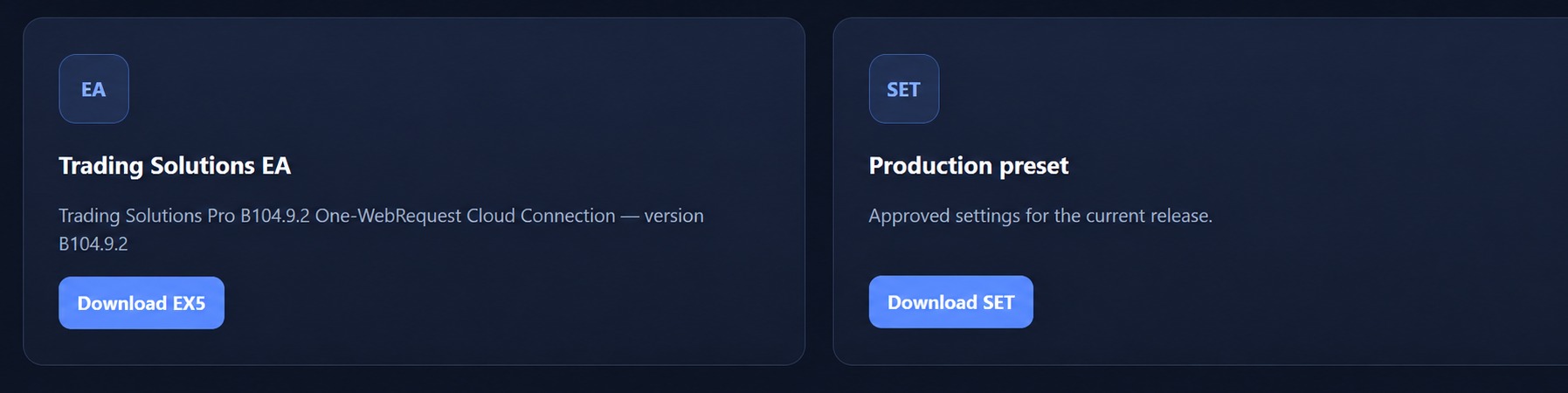
Your SET is personalised automatically. Do not manually type or change the licence key.
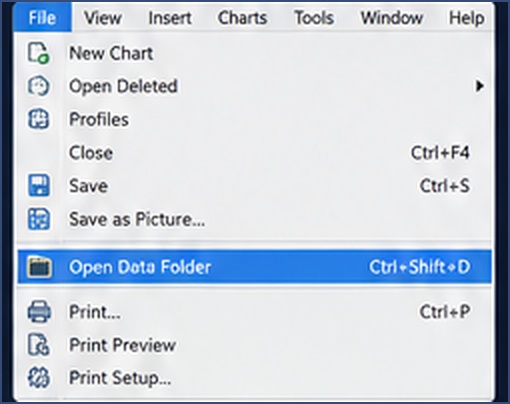
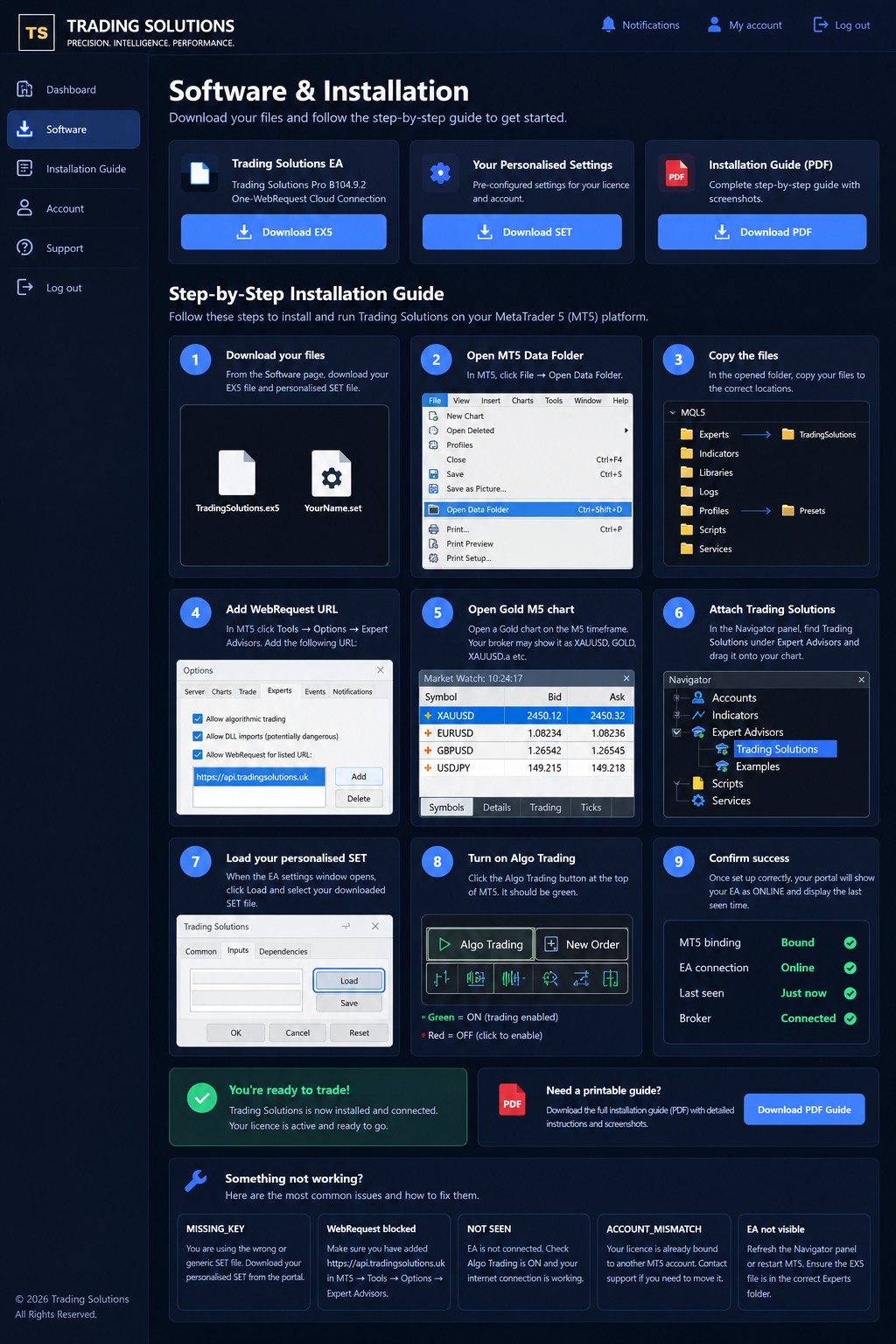
Follow these steps in order. Customer setup is just two files and one MT5 WebRequest URL.
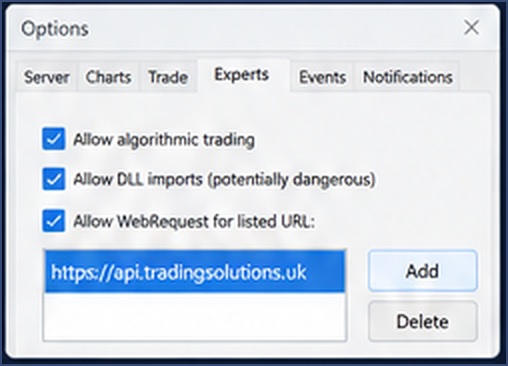
https://api.tradingsolutions.uk.
You do not install Python, Caddy, a local bridge or port 5002.
Sign in to your Trading Solutions account and download the current EX5 and your personalised SET.
Your SET is personalised automatically. Do not manually type or change the licence key.
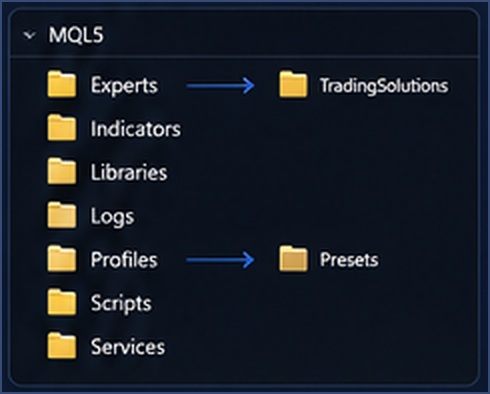
Open the Windows desktop version of MetaTrader 5.
Use the Data Folder opened in Step 2.
EX5:
SET:
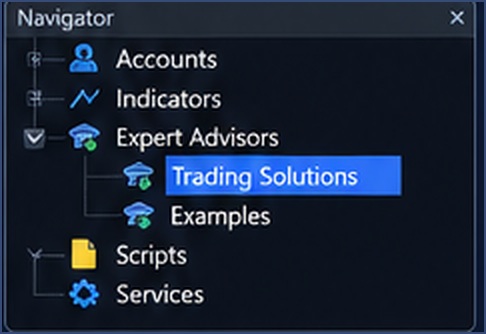
Back in MT5, right-click Expert Advisors in Navigator and choose Refresh, or restart MT5.
This is the only Trading Solutions WebRequest URL a customer needs.
No 127.0.0.1 URL is required for customers.
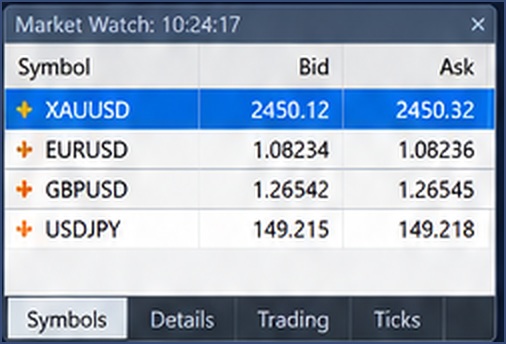
Trading Solutions runs on the Gold five-minute chart.
Your broker may call Gold XAUUSD, GOLD, XAUUSD.a, XAUUSDm or something similar. Use your broker's Gold symbol and select M5.
Find the EA in MT5 Navigator.
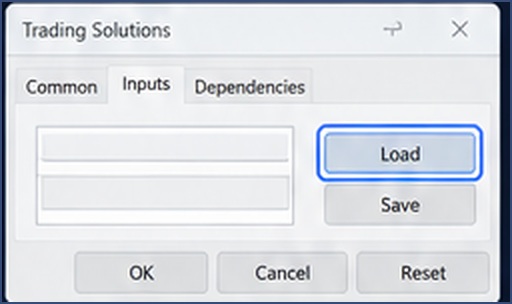
The SET contains the approved production settings and your licence.
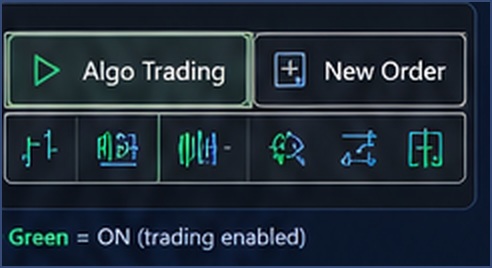
TradingSolutions_B104_9_BETA_RC_DEMO.set.MT5 must permit automated trading for the EA to operate.
The EA can legitimately wait for a setup. No immediate trade does not mean installation failed.
Return to your Trading Solutions customer account.
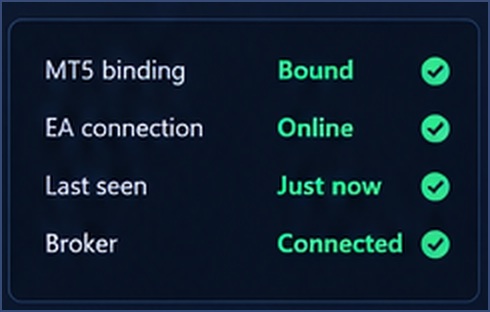
The EA sends a heartbeat every five minutes. After first connection, allow a few minutes for the status to refresh.
Once the portal shows BOUND and ONLINE, leave MT5 running. If you use a Windows VPS, disconnect Remote Desktop without shutting down Windows or closing MT5.
https://api.tradingsolutions.uk in MT5 Tools → Options → Expert Advisors.